





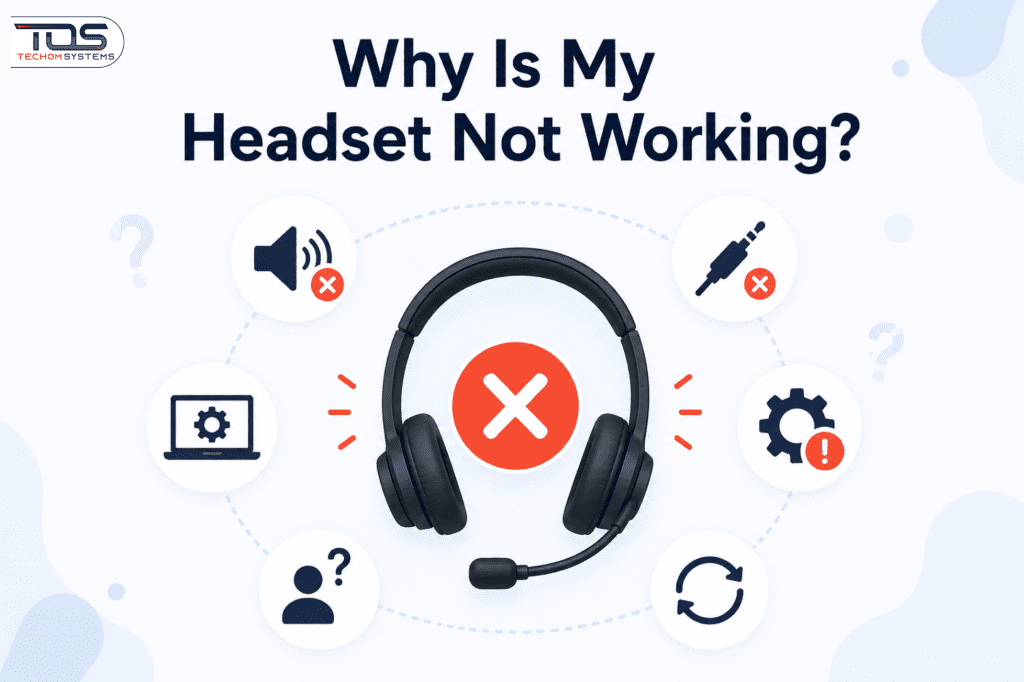
A headset not working can interrupt important communication, affect gaming performance, or slow down your workflow. This can be especially frustrating when using tools like the Best Poly Headsets for Microsoft Teams, where reliable audio is essential for clear collaboration. To address common issues, it’s best to start with basic troubleshooting such as checking physical connections, ensuring the device is properly plugged in, and inspecting cables for damage. Verifying that the headset is powered on, correctly paired (for wireless devices), and selected as the default audio device can often resolve problems quickly.
If the issue continues, software-related fixes may be required. Updating audio drivers, adjusting sound settings, and reviewing application permissions can help restore proper functionality. In more complex cases, advanced troubleshooting—such as testing the headset on another device, resetting system audio configurations, or using built-in diagnostic tools—can help determine whether the problem lies with the hardware or the system itself.
Common Causes of Headset Not Working
A Headset Not Working issue usually falls into three main categories: physical connection problems, software configuration errors, or hardware malfunctions. Identifying the root cause is essential for effective troubleshooting, especially when using high-performance devices like the Best Poly Headsets for Microsoft Teams or the Best Poly Headsets for Call Centres, where consistent audio quality is critical.
1. Physical Connection Problems
Many headset issues begin with simple connection faults. For wired devices, loose USB ports or improperly inserted audio jacks can interrupt sound or microphone functionality. In wireless setups, such as Bluetooth-enabled models, pairing errors or weak signal strength may cause disconnections. Additionally, USB audio interfaces should be tested with alternate ports or cables to rule out port-related issues—this is particularly important in business environments relying on the Best Poly Conference Phones for Business and related accessories.
2. Software & Driver Conflicts
Outdated, missing, or corrupted audio drivers are a common reason behind a Headset Not Working problem. System settings, especially in Windows Sound configurations, may also prevent the headset from being recognized or functioning correctly. Ensuring your device is set as the default audio input/output and keeping drivers updated can resolve many such issues efficiently.
3. Hardware Failures
In some cases, the issue may stem from physical damage to the headset itself. Faulty microphones, damaged speakers, or internal circuit problems can lead to distorted sound or complete audio failure. While this is more common in low-cost models, even premium devices like the Best Poly Headsets for Call Centres can experience wear and tear over time, especially with heavy daily use.
Step-by-Step Troubleshooting for Headset Not Working
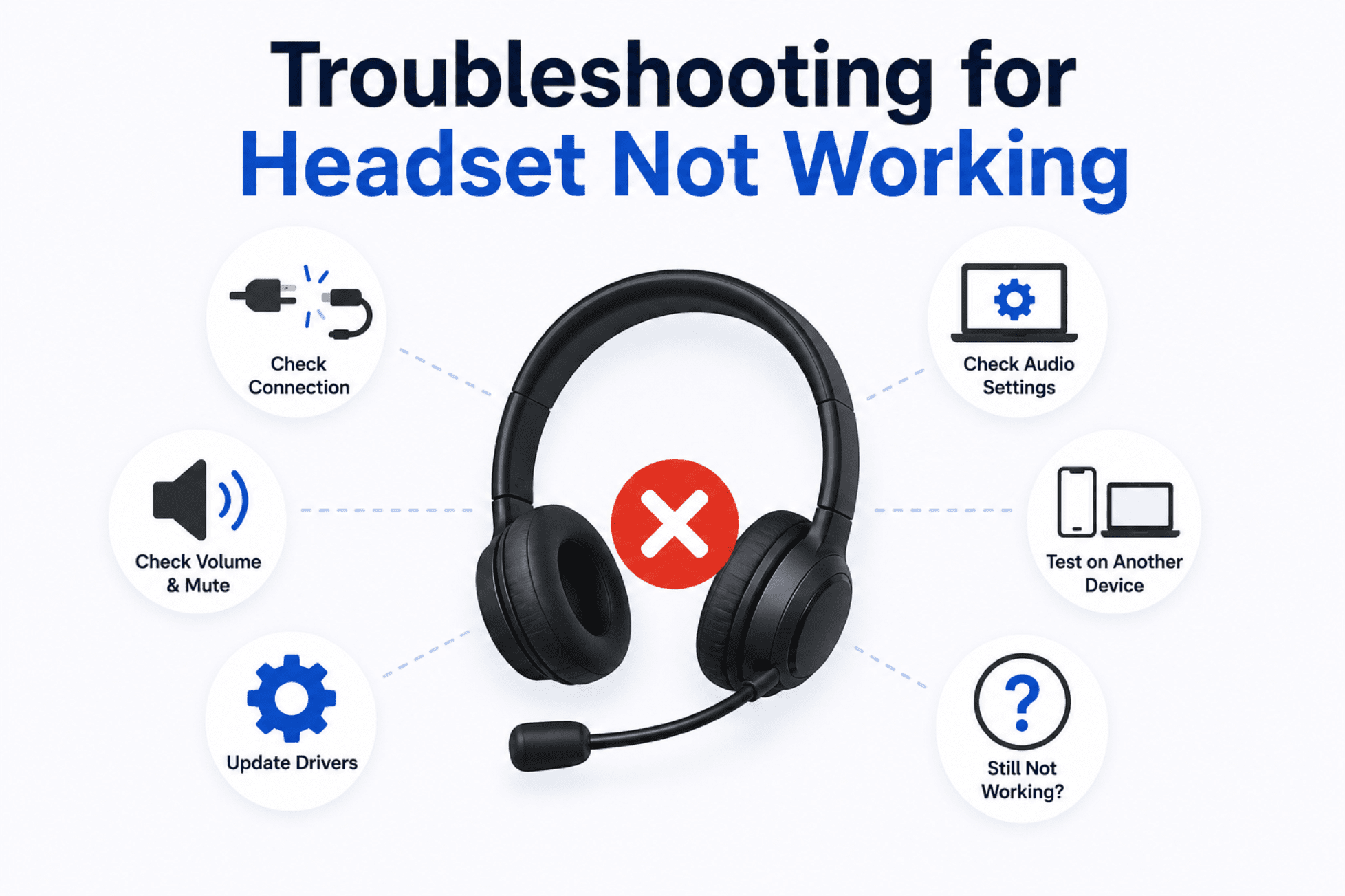
Resolve a Headset Not Working issue by following a structured, step-by-step troubleshooting process. Begin with basic checks like connections and settings, then move to driver updates and device testing. This method ensures efficient diagnosis before applying advanced fixes more complex.
1. Basic Connection Verification
- Confirm the headset is fully charged (wireless models)
- Check physical damage to cables or connectors
- Test with different audio sources (mobile devices, computers)
- Ensure the headset is not muted or volume muted
2. Windows Sound Settings Configuration
- Right-click Start > Sound > Playback tab
- Ensure the headset is listed and set as default
- Test with different audio formats (WAV, MP3)
- Check microphone permissions in Privacy Settings
3. Driver & Software Updates
- Device Manager > Right-click audio devices > Update driver
- Install manufacturer-specific software (e.g., Logitech Options)
- Perform system-wide Windows Update check
Advanced Troubleshooting for Persistent Headset Issues
Advanced troubleshooting for a Headset Not Working issue includes updating firmware via Poly Lens, checking system audio settings and drivers, and testing the device on another system to isolate faults. Also inspect cables and connections for damage. For models like SKU: 85W99AA, 7230-88230-012, and 2200-86840-012, ensure correct setup in Microsoft Teams or call centre software, and consider a factory reset if problems persist.
1. Hardware Diagnostic Tools
Start by using manufacturer-provided diagnostic software to evaluate your headset’s internal components. Many brands offer built-in utilities that can detect faults in speakers, microphones, or circuitry. These tools help pinpoint whether the issue is hardware-related, saving time and avoiding unnecessary replacements.
2. BIOS/UEFI Settings Adjustment
In some cases, headset performance depends on underlying system settings. Access your BIOS or UEFI menu to ensure configurations such as legacy audio support, USB port functionality, and headphone jack detection are properly enabled. Incorrect settings at this level can prevent the system from recognizing your device.
3. Operating System Reset
If software conflicts continue despite all efforts, performing a system restore or full reset may be necessary. This step should be considered a last resort, as it resets configurations and removes problematic settings that could be causing the issue. It can be particularly effective in resolving persistent conflicts affecting devices like the Best Poly Conference Phones for Business and other audio equipment.
Why TECHOM Shop Is Your Trusted Partner?
TECHOM Shop stands out as a reliable provider of premium communication solutions tailored for modern workplaces. We offer a carefully selected range of products, including the Best Poly Headsets for Microsoft Teams, ensuring seamless connectivity, exceptional audio clarity, and long-lasting performance. Our focus is on delivering genuine, high-quality devices that meet the demands of professionals, call centres, and businesses.
In addition to quality products, TECHOM Shop is committed to customer satisfaction through competitive pricing, expert guidance, and dependable support. Whether you need solutions like the Best Poly Headsets for Call Centres or advanced conferencing tools, our team ensures you find the right fit for your needs, making us a trusted partner for efficient and hassle-free communication.
Technical Comparison of Headset Troubleshooting Methods
Compare technical troubleshooting methods for Headset Not Working issues, covering hardware checks, driver updates, software fixes, and diagnostics, helping identify efficient solutions for Best Poly Headsets for Microsoft Teams devices.
| Method | Effectiveness | Time Required | Technical Skill Needed |
|---|---|---|---|
| Physical Connection Check | 85% | 2 minutes | Beginner |
| Sound Settings Verification | 90% | 5 minutes | Beginner |
| Driver Update | 75% | 10 minutes | Intermediate |
| Hardware Diagnostic Tools | 95% | 15 minutes | Advanced |
Expert Perspective on Headset Not Working Solutions
“Most Headset Not Working issues stem from configuration rather than hardware failure,” says John Carter, Senior Audio Engineer at TechSupportPro. “Always verify device manager settings and test with different audio sources before assuming hardware damage.”
Frequently Asked Questions
1. What if my computer doesn’t detect my headset?
If your headset isn’t detected, try another USB port, update audio drivers, and use manufacturer tools. This is important when using the Best Poly Headsets for Microsoft Teams, as proper detection ensures seamless communication and optimal device performance across applications.
2. How do I fix intermittent sound issues?
Intermittent sound problems often indicate unstable connections or interference. Test different cables, reduce nearby electronic interference, and ensure full battery charge for wireless devices. These steps are especially useful when using the Best Poly Headsets for Call Centres in high-demand environments.
3. Why is my headset only working on one side?
If audio plays on only one side, it may indicate internal damage or incorrect audio settings. Test the headset on another device, check balance settings, and inspect components carefully, particularly when using the Best Poly Conference Phones for Business alongside audio setups.
4. Can software conflicts cause a headset not working?
Yes, software conflicts can disrupt audio output and lead to detection issues. Close background applications using audio, update system drivers, and restart your device to clear temporary glitches. This helps restore smooth headset functionality and improves overall system audio performance effectively.
5. When should I replace my headset?
Consider replacing your headset if problems persist despite troubleshooting. Continuous sound issues, poor audio quality, or hardware damage often indicate failure. Upgrading ensures reliable performance, clearer communication, and a better experience, especially for professional or daily use in demanding environments.
Conclusion
Dealing with headset issues can be frustrating, but most problems can be resolved with the right troubleshooting approach. From checking physical connections to updating drivers and adjusting system settings, these steps help restore proper functionality and improve overall audio performance.
If you’re still wondering, Why Is My Headset Not Working?, the answer often lies in a combination of hardware, software, or connectivity issues. By identifying the root cause and applying the appropriate fixes, you can ensure reliable communication and get the best performance from your headset for work or daily use.

Peter Pawlak, Director of Sales and Customer Advocate, brings over 15 years of experience helping ambitious business owners grow with confidence. His mission is to empower people to start, build, and run their businesses successfully, turning ideas into thriving ventures. Peter’s passion for business transformation and his results-driven approach have been key to guiding entrepreneurs toward faster and smarter growth.